← Projects · macOS menu bar app

Clamshell

Use your Mac with the lid closed, on battery.

macOS sleeps a Mac the moment the lid shuts on battery, even at full charge. Clamshell keeps the Mac awake and turns the built-in screen off. Automatic does this only while a display is attached. With no display, closing the lid sleeps the Mac. On an M4 MacBook Air, 12 hr Power went from 14.68 to 1.68 in release 1.5.0.

1.6812 hr Power on an M4 Air, from 14.68
~0.1sCPU per minute for the watcher and helper, from 1.69
13+macOS, Apple Silicon
3cutoffs that turn Always Awake off

01 What it does

Three modes

Automatic stays awake with the lid closed only while a display is attached. Always Awake stays awake with no display, until a cutoff. Off is stock macOS. The built-in screen goes dark behind a closed lid. Wi-Fi, audio, and running jobs continue.
Cutoffs

A battery floor, a timer, or Low Power Mode turns Always Awake off. The floor defaults to 15%. If the lid is shut and no display is attached, the Mac then sleeps. After a floor or Low Power Mode cutoff, plugging in turns Always Awake back on. A timer cutoff stays off. The watcher keeps a running timer if you quit the app or reboot.

Event helper

Release 1.5.0 adds clamshell-events. The helper watches the lid, displays, power, battery, Low Power Mode, and the mode file. It prints a line only when something changes. The watcher checks on each line, and at least once a minute. If the helper is missing or goes quiet for 150 seconds, the watcher polls again.

02 Screenshots

These are the app's own views, drawn with sample readings. The menu bar icon is the laptop.

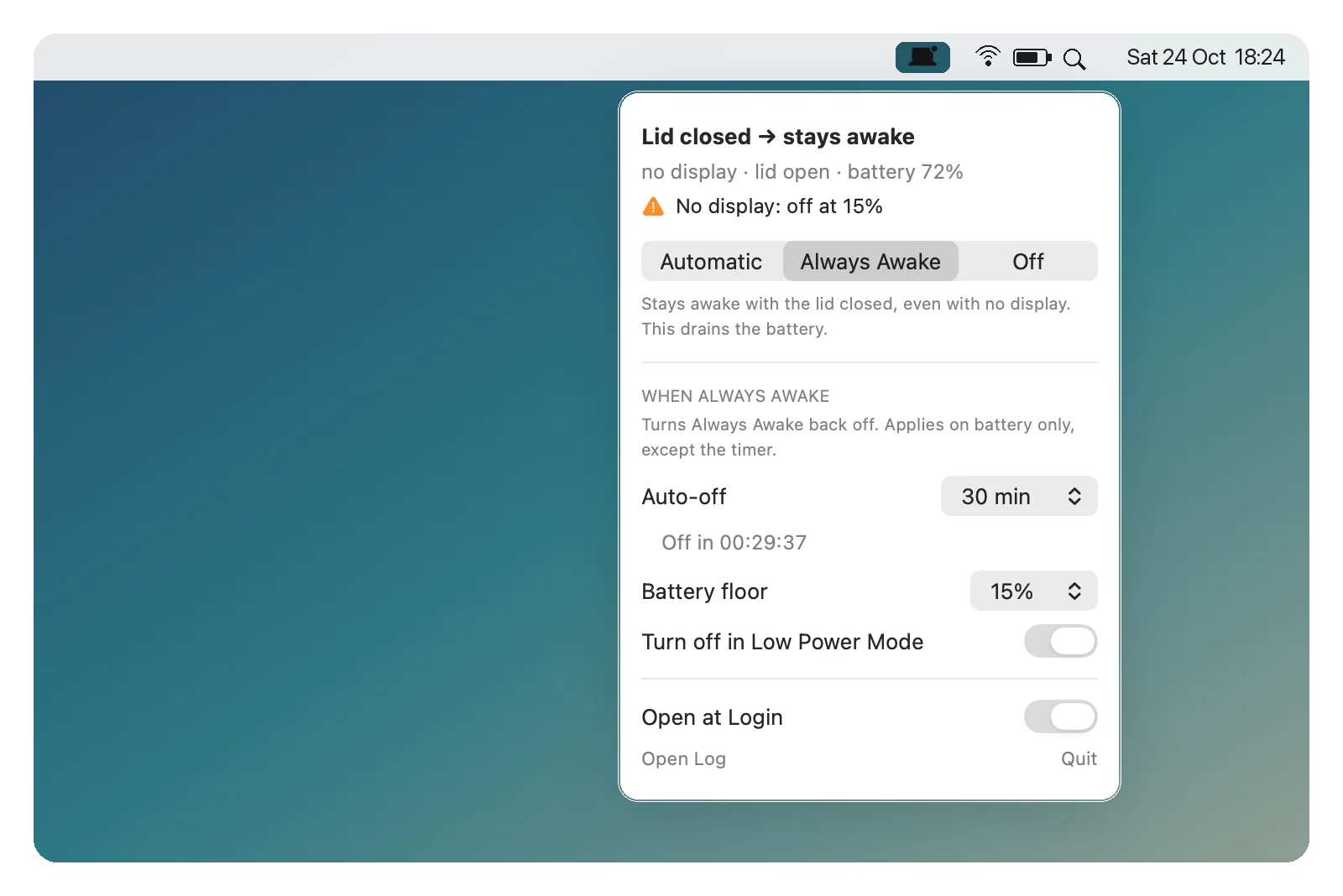
Clamshell open from the menu bar. Always Awake is on, battery is 72%, and a 30 minute timer is running.
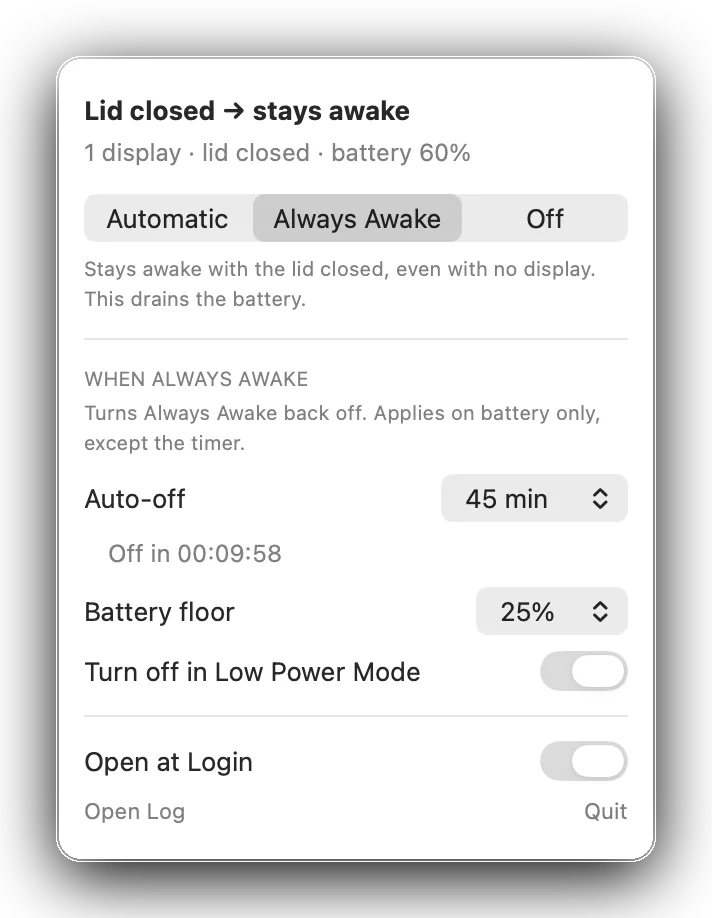
The panel with one display, the lid closed, a 45 minute timer, and a 25% battery floor.
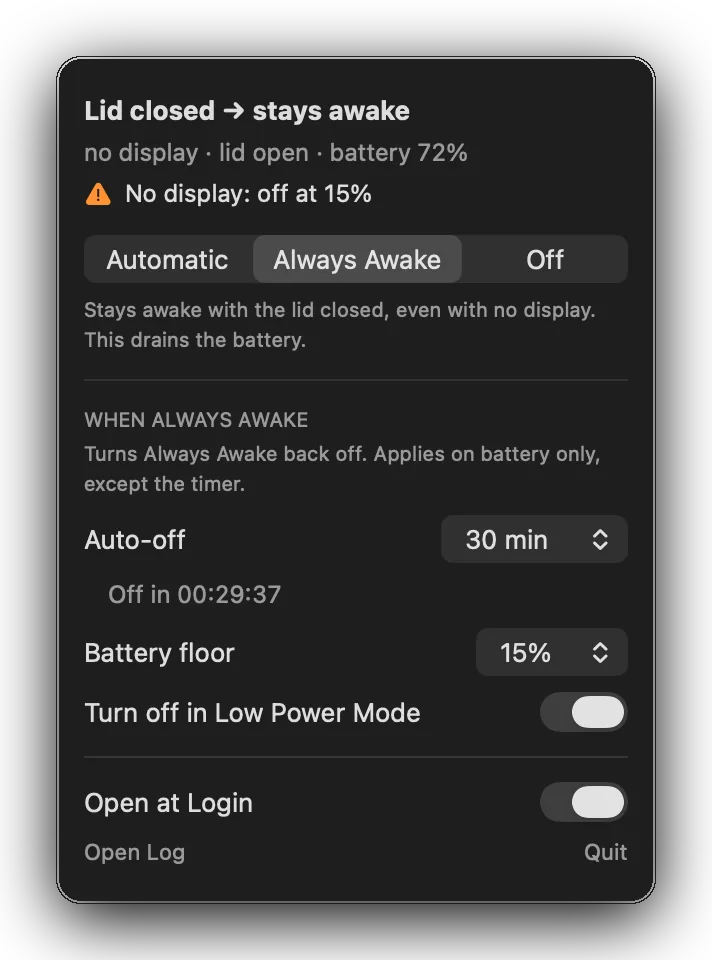
The Always Awake panel in dark mode, with 29 minutes left on a 30 minute timer.
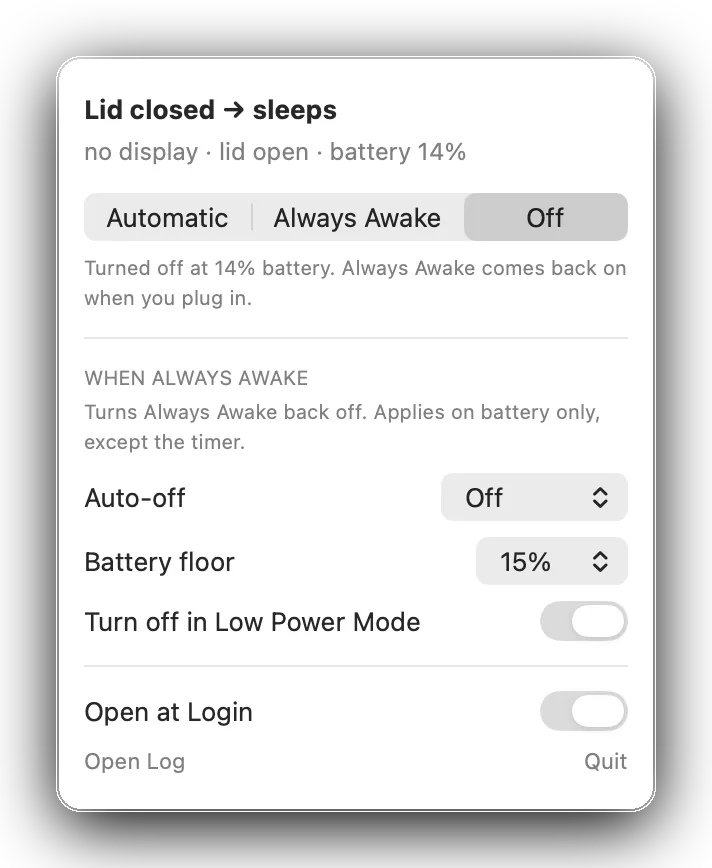
The panel after a cutoff at 14% battery. Always Awake comes back when you plug in.
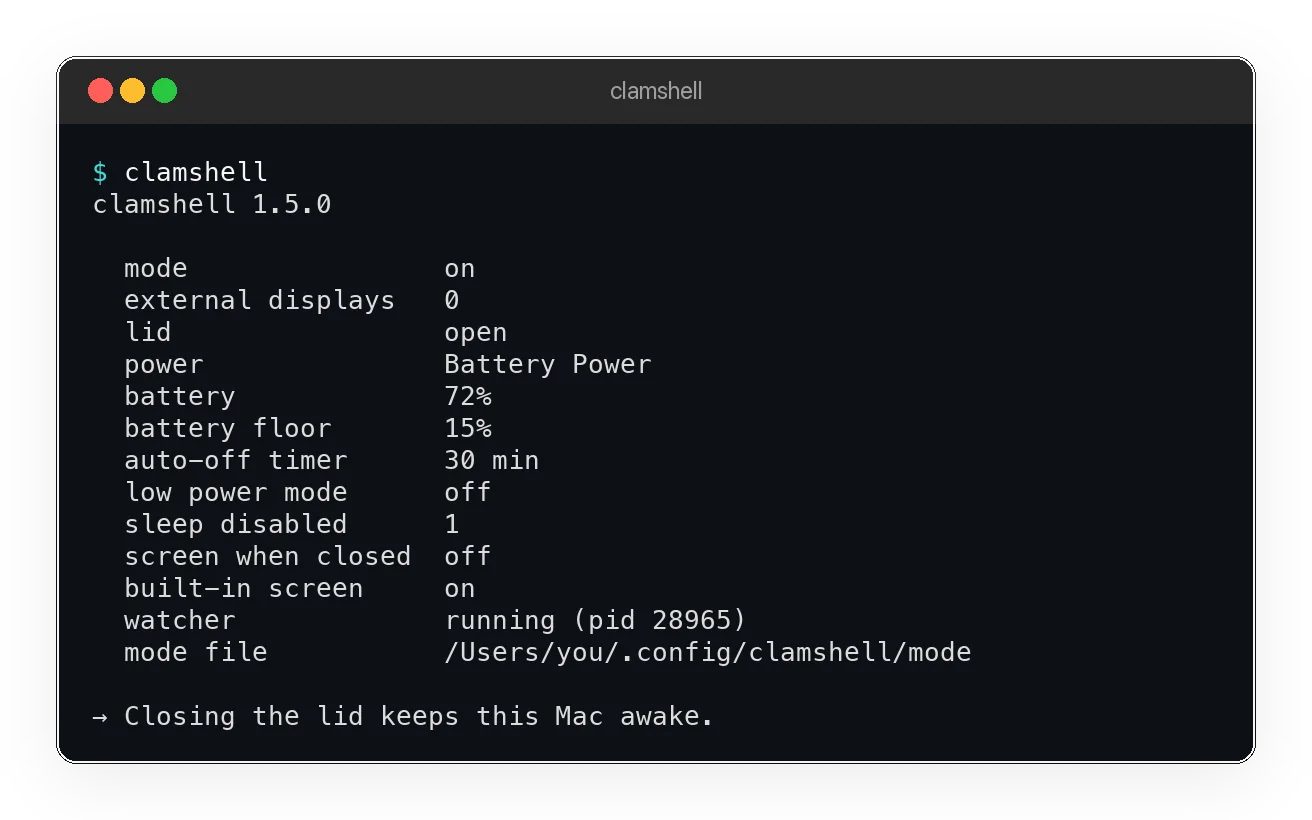
The clamshell command printing status in the terminal: mode on, battery 72%, timer 30 min.

03 Get it

macOS 13 or later, on Apple Silicon. Download Clamshell-1.5.0.pkg. You do not need Xcode.

  1. Double-click the package. Enter your password when it asks. The watcher is a system daemon, so the installer asks once.
  2. It installs the menu bar app, the clamshell command, the watcher, and the event helper, then opens the app.
  3. The package is not signed with an Apple Developer ID, so macOS blocks it the first time. Open System Settings, then Privacy & Security, click Open Anyway, and confirm.

To remove it, run sudo clamshell-uninstall. That unloads the watcher, removes the app, the command, and the helper, and turns stock sleep back on.

MIT licence. The power numbers are from an M4 MacBook Air. Intel Macs are not supported. The clamshell command changes the same settings as the panel.