← Projects · macOS menu bar app

Bandwidth Meter

Weekly and monthly data totals, from the history Bandwidth+ already keeps.

Bandwidth+ records each day. It does not add up a week or a month. Bandwidth Meter reads those daily records on your Mac and totals them in the menu bar, or from the bandwidth-meter command. Release 1.1.0 installs from one disk image. The app makes no network calls of its own.

9periods, from today through all time
0network calls of its own
1disk image for the app and the command
14+macOS, Apple Silicon

01 What it does

The periods you ask about

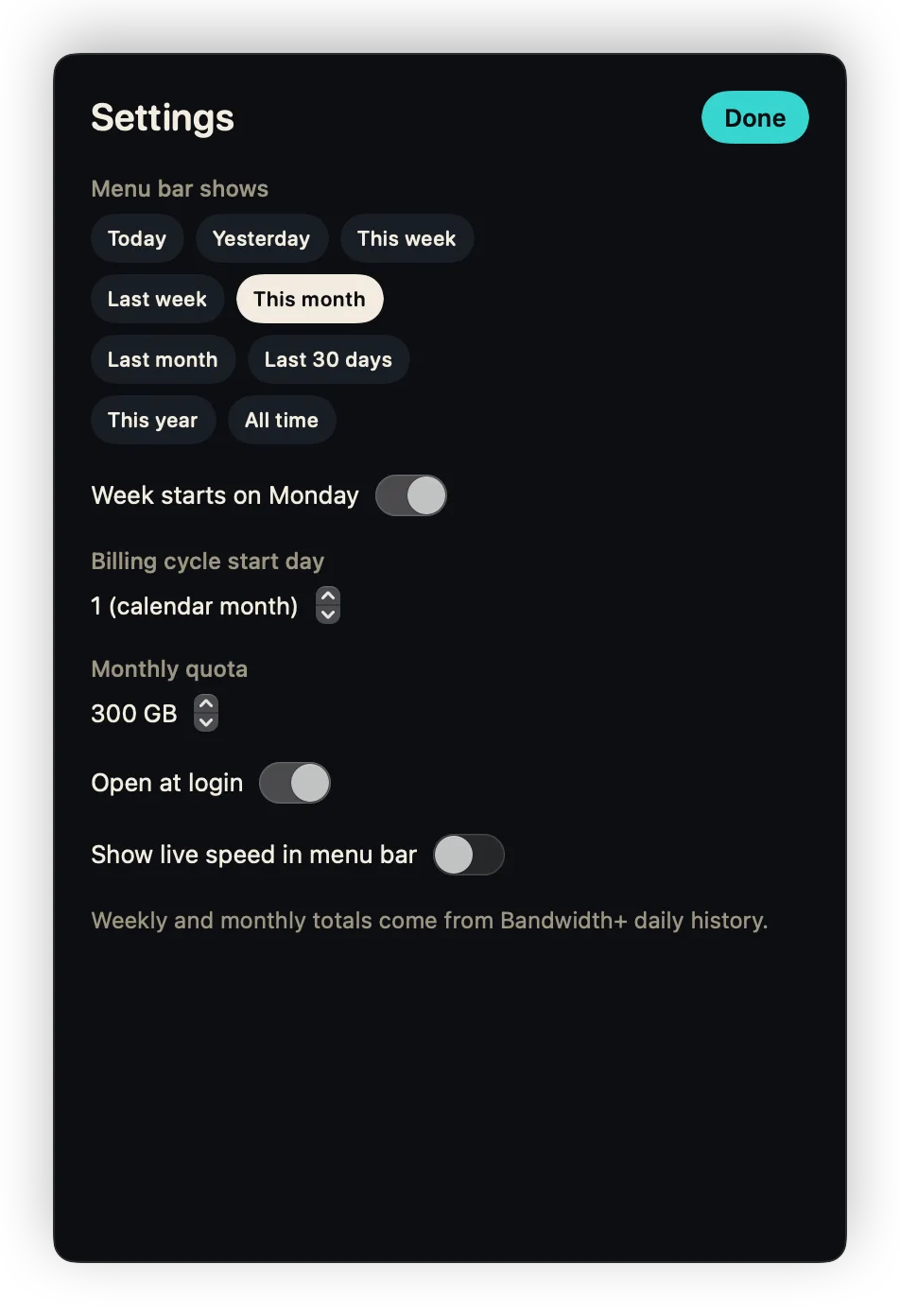
Today, yesterday, this week, last week, this month, last month, the last 30 days, this year, and all time. Weeks start on Monday. A month can start on your billing day, and an optional quota shows how much of it you have used.
Menu bar and command

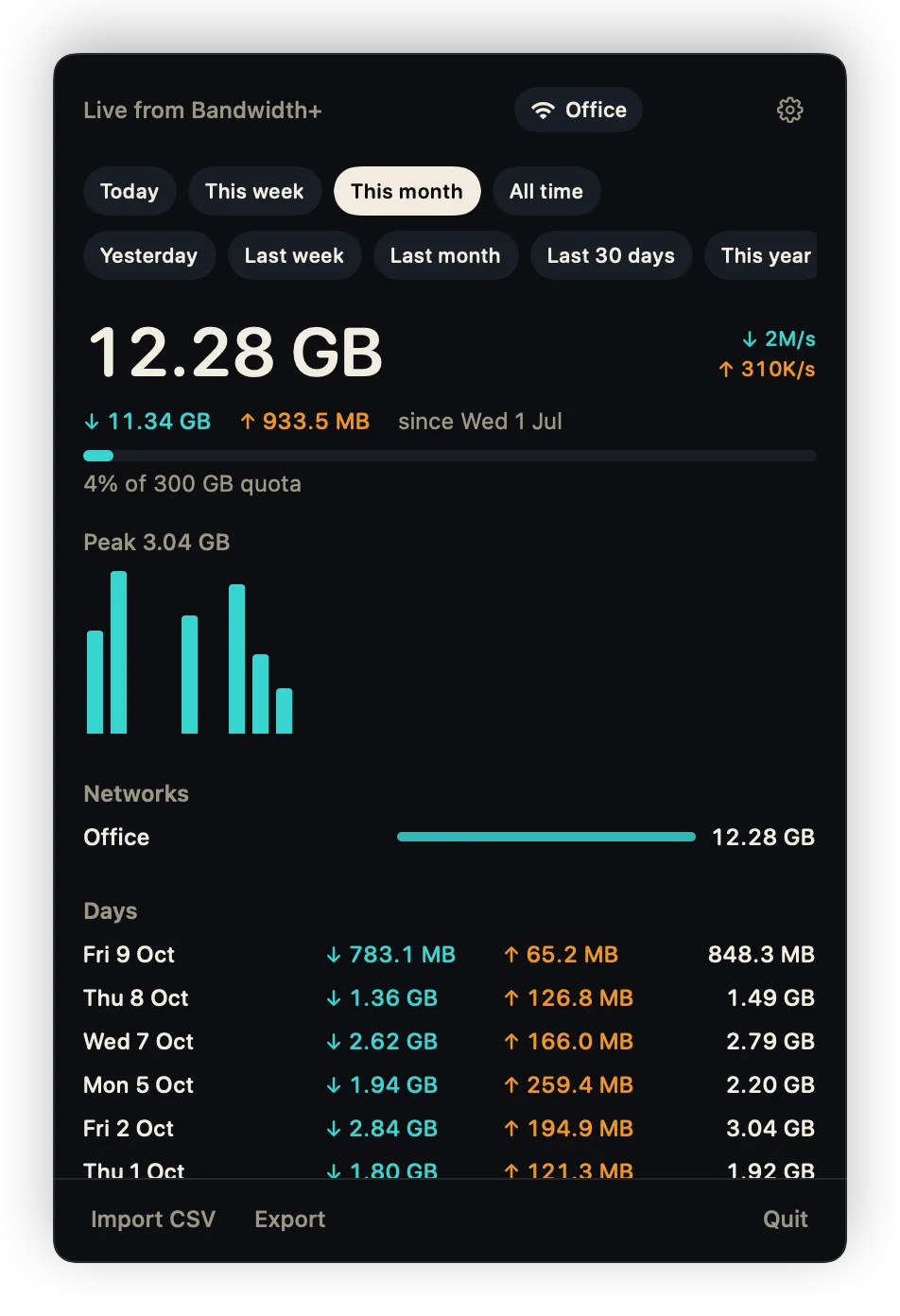
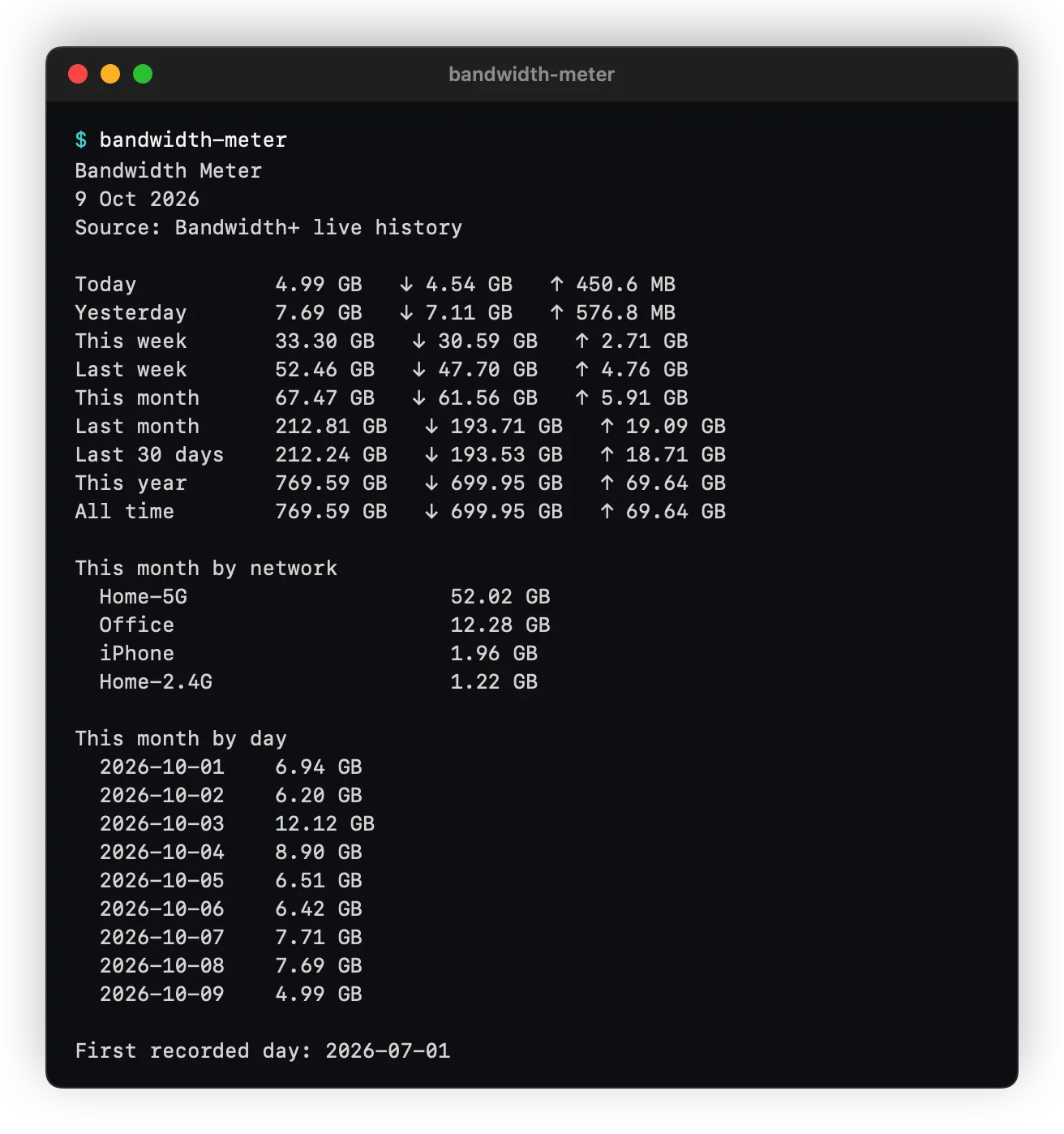
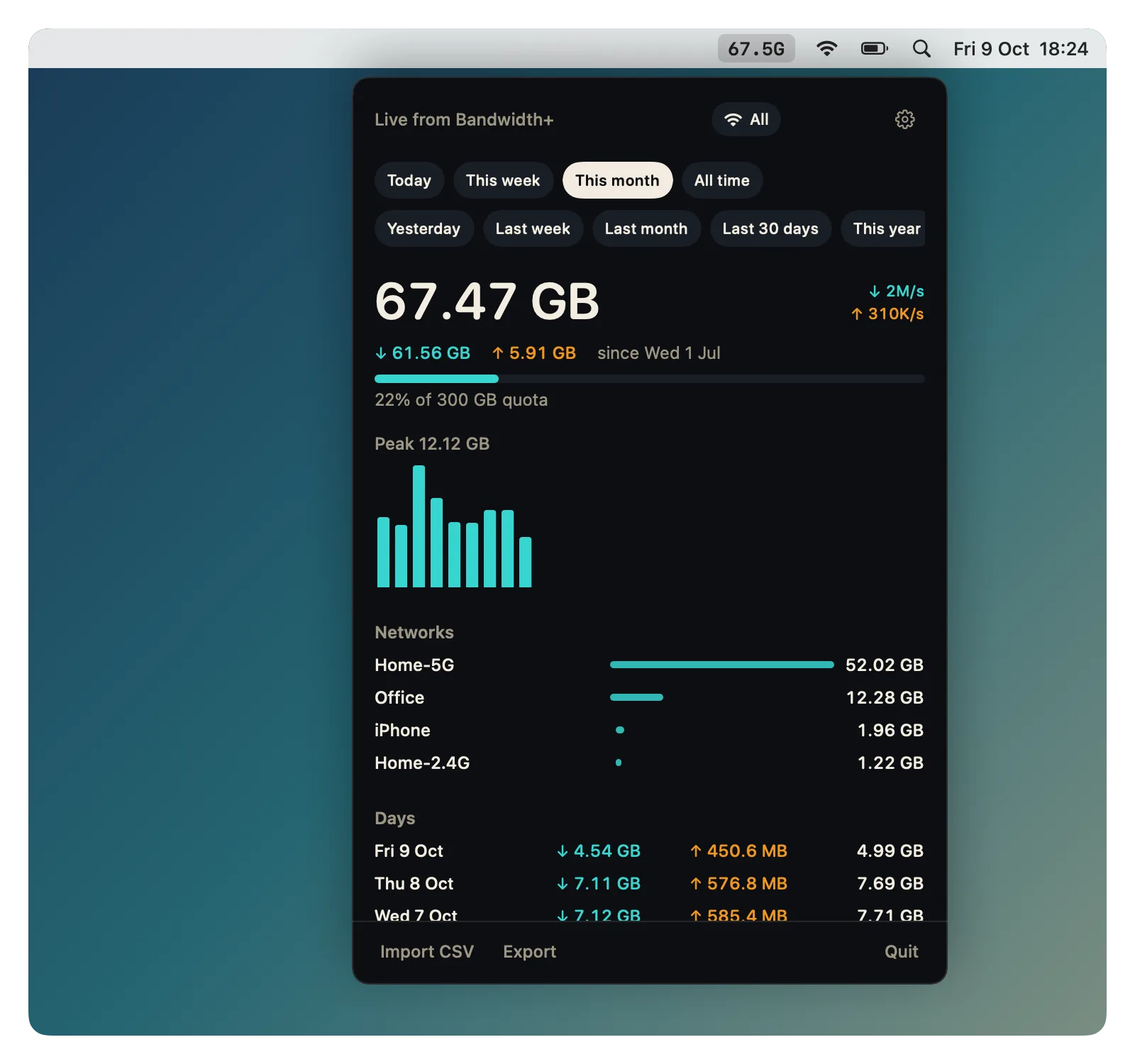
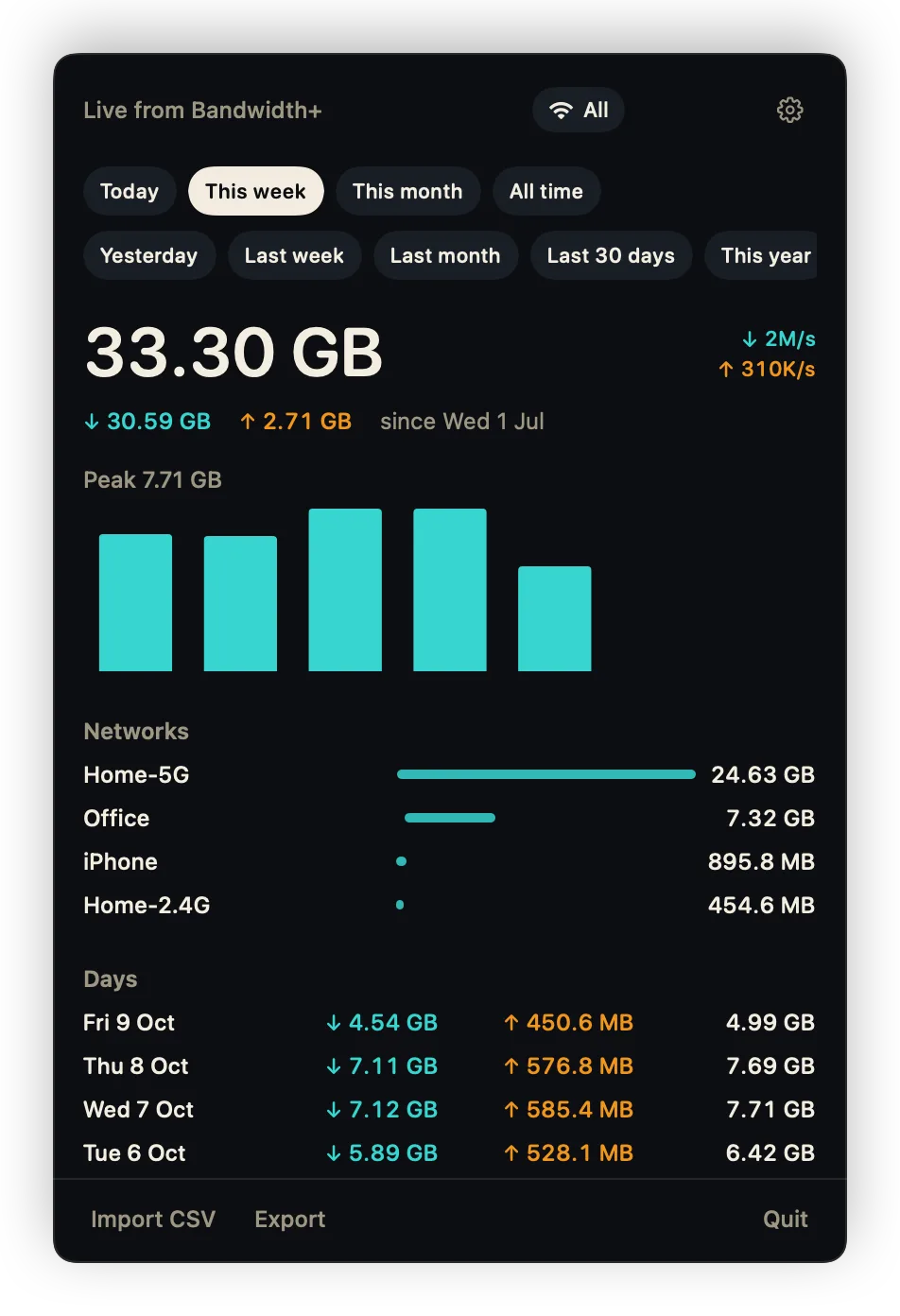
The panel shows the total, the download and upload split, a daily chart, each network, and each day. The menu bar label is a compact total such as 67.5G, or live speed if you prefer. bandwidth-meter prints the same summary and exits. --json is there for scripts.

Local history

It reads Bandwidth+'s History and today's Data file on this Mac, so you do not have to export a CSV first. You can still import a History.csv, and that works even if Bandwidth+ is not installed. One network can be filtered from the panel or with --network.

02 Screenshots

These are the app's own views, drawn with made-up demo data. The menu bar label is the month total.

Bandwidth Meter open from the menu bar, this month at 67.47 GB, with a daily chart, networks, and days
The panel with This week selected
The panel filtered to one network
Settings: the menu bar period, billing day, quota, and login options
The bandwidth-meter command printing a summary in the terminal

03 Get it

macOS 14 or later, on Apple Silicon. Download Bandwidth-Meter-1.1.0.dmg. You do not need Xcode or Terminal.

  1. Open the disk image and double-click Install. Enter your password when it asks.
  2. The app goes in /Applications. The bandwidth-meter command goes in /usr/local/bin. The installer opens the app, and ejects the disk image when you close its window.
  3. The installer is not notarized yet. On macOS 15 or later, click Done on the warning, then Open Anyway under System Settings, Privacy & Security. On macOS 14, right-click Install, choose Open, and click Open again.

To update, run the installer from a newer disk image. It keeps your history and settings. Uninstall on the same disk image removes the app, the command, and the installer receipt, and deletes saved totals only if you say so.

If you installed 1.0.x from a zip, the old command may still be in ~/.local/bin and come first on your PATH. Delete that file, or run Uninstall, which removes it too.

MIT licence. Bandwidth Meter is not affiliated with Bandwidth+. Leave Bandwidth+ running if you want each day recorded. Import CSV still works without it.